How to Assign a Control4 Connect Demo Plan to a System
Control4-certified dealerships receive five no-cost Connect Demo Plans. Assign them to showroom or employee Control4 accounts for training, testing, and sales demonstrations. These plans do not expire and can be revoked to assign to a different system.
Caution: Do not apply demo codes to end user accounts. This terminates current 4Sight licenses and eliminates their discount pricing for a Connect subscription. Refunds will not be given for purchased Connect plans.

Pre-requisites
-
The Control4 controller must be running OS 3.4.2 or higher.
-
You must link your my.control4.com account to OvrC. Read How to register a Control4 Controller in OvrC for instructions.
-
If you're on a Legacy Control4 Dealer or Sub-Dealer account you must convert to a Customer account. Read Upgrading Existing Control4 Showroom Accounts for instructions on how to convert the system.
-
Only one my.control4.com account can be linked to an OvrC account.
-
You cannot revert to a legacy 4Sight subscription after upgrading an account to Control4 Connect.
-
If a project has remaining 4Sight time it will not carry over. Refunds for any unused months of 4Sight will not be given.
How to generate a code
Follow these steps to hand off the system, then have an OvrC account owner generate a Connect Demo Plan code with the steps below:
-
Start the system handoff process by navigating to the demo system's OvrC Location > Settings > Manage Access.

-
Click Invite User to open a window to enter the Control4 mobile app user's email address and phone number.

-
Select Control4, then click Select Plans.
-
Select Control4 Connect, then click Send Invite. This sends a one-time use passcode to log into the new Control4 account.

Note: The following steps must be done by an OvrC account owner.
-
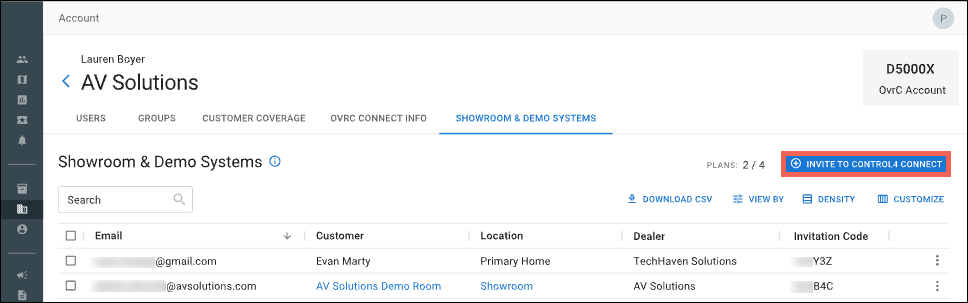
Go to your OvrC Account page and navigate to the Showroom & Demo Systems tab.
-
Click Invite to Control4 Connect, enter the email address tied to the OvrC Customer, then click Send Invite to email the demo code.
How to apply the code
Demo codes are applied through the Control4 mobile app. Be sure to use the mobile app for the OS the system is currently running (OS3 or X4). The instructions below use screen shots from the OS4 mobile app, but the process is the same for both.
To apply a Connect Demo code:
-
Open the Control4 mobile app.
If this is a new installation, tap Register and follow the onscreen instructions until you see the Your Essential Service screen.

If this is a system upgrading from 4Sight, you'll see an Optimize Your System screen. Tap Begin Upgrade.

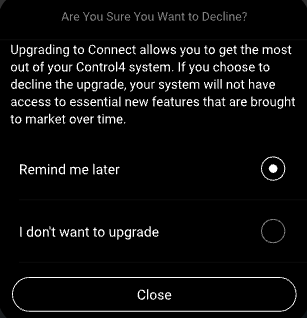
If you're upgrading an existing system, you can tap Not Now to be reminded to upgrade later and use the Control4 system as it is. You can also choose not to upgrade.
-
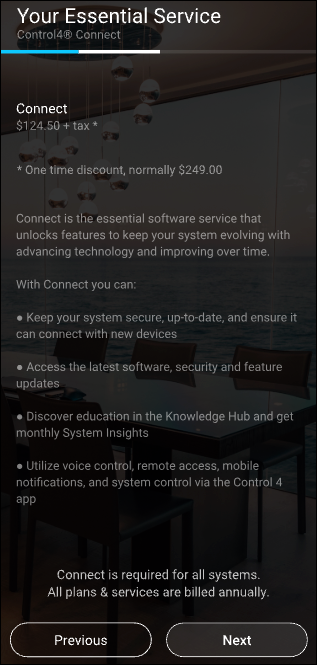
The mobile app displays information about Control4 Connect. Tap Next.
-
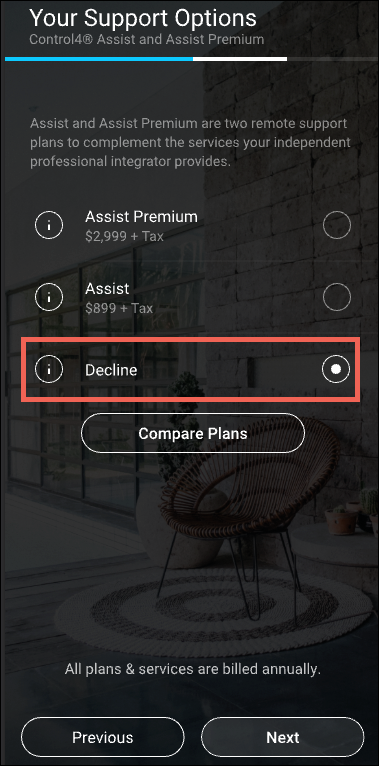
There may be a Your Support Options screen. If so, select Decline to use a Demo code. Tap Next.
-
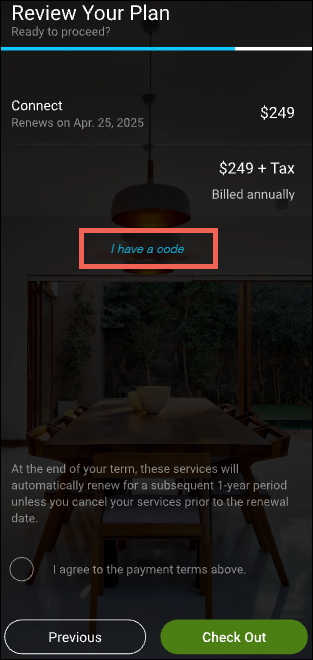
On the Review Your Plan page, tap I have a code.
-
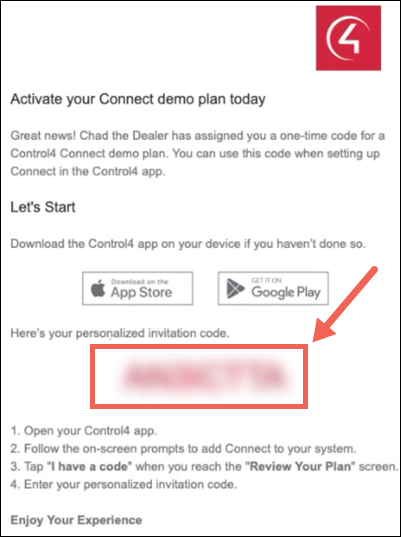
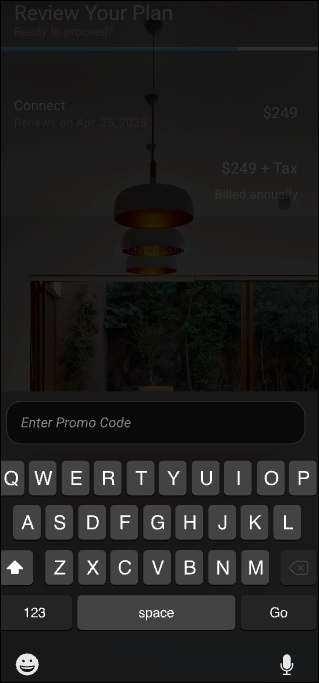
Open the Invite to Demo Plan email, copy the code, and paste it in the Control4 app.
-
Follow the on-screen instructions to finish enrollment or view the Knowledge Hub to learn more about Control4.
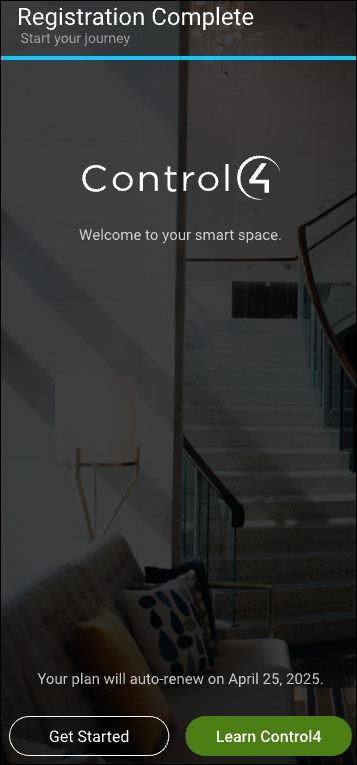
Note: An Expiration/Renewal date does appear in your monthly reports and the Plans & Services page of the customer's Control4 mobile app. This date is not enforced. For more information on how long a customer has when a license is revoked, read How to Revoke a Control4 Connect Demo Plan.
FAQ
I applied a demo plan, why do I see an expiration date?
Because the software cannot accept an infinite value. Control4 Connect Demo Plans do not expire. The expiration date shows a year from the current day.
What if I have customers and locations with a dealer of record spread across multiple Control4 accounts?
If the customer’s Dealer of Record is different from the Control4 account linked to your OvrC account, ask the customer to update their Smart Home Pro in customer.control4.com. Otherwise, you cannot invite them to Control4 Connect or unregister/re-register the account.
Can I have multiple OvrC accounts tied to the same Control4 account?
Yes. This is uncommon, but there are some instances where it makes sense for a business to have multiple OvrC accounts.